> For the complete documentation index, see [llms.txt](https://docs.zbrain.ai/llms.txt). Markdown versions of documentation pages are available by appending `.md` to page URLs; this page is available as [Markdown](https://docs.zbrain.ai/zbrain-release-notes/zbrain-zsearch-release-notes/zbrain-version-2.4.6-or-jan-29-2026.md).
# ZBrain Version 2.4.6 | Jan 29, 2026
## **Overview**
ZSearch introduces a unified, end-to-end workspace for enterprise knowledge discovery and collaboration. This release enhances search transparency with source attribution, expands project-based workflows with file and collaborator management, and adds powerful filtering, navigation, and project creation capabilities. It also strengthens governance through user and billing management, improves reliability with upload limits and batch processing, and delivers deeper usage visibility—transforming ZSearch from a search tool into a fully integrated productivity and collaboration platform.
### New features
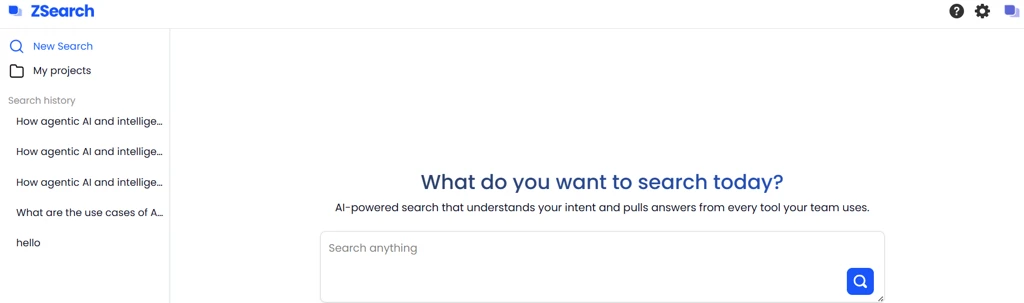
#### **Left navigation panel for sessions & recent chats**
ZSearch introduces a fixed left-hand navigation panel that allows users to start new sessions instantly and quickly access previously created projects. This enhancement streamlines workflow management by making it easier to reuse earlier work and organize ongoing searches without losing context.
**Navigation:**\
ZBrain → ZSearch → Left Navigation Panel
**Key outcomes:**
* Provides a fixed, always-accessible navigation panel across all ZSearch views for consistent usability.
* Improves workflow efficiency by reducing time spent navigating between sessions and recreating searches.
* Supports better reuse of previously generated information, helping users manage and scale their research more effectively.
#### **Natural language search and filters**
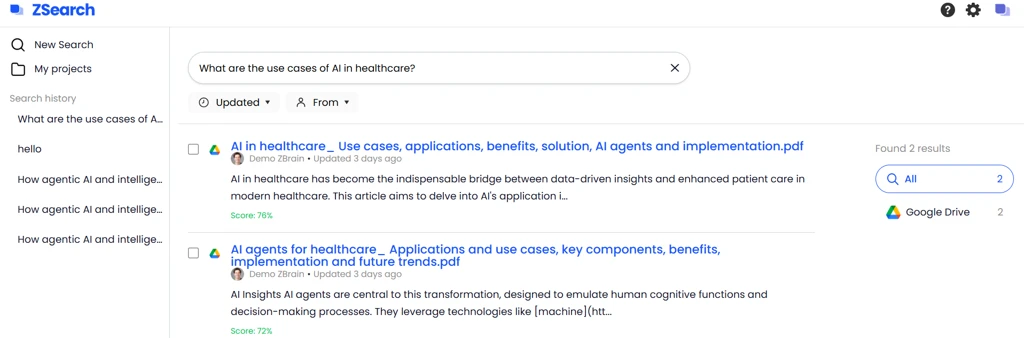
ZSearch allows users to enter natural-language queries in a single search bar to retrieve relevant information from multiple internal tools—including Google Drive, Jira, and GitHub—in a single consolidated results view. Enhanced filtering by source, author, and timeframe makes it easy to narrow results and convert selected items into projects for ongoing collaboration.
**Navigation:**\
ZBrain → ZSearch → Landing Page → Search Bar → Results View
**Key outcomes:**
* Enables users to enter plain-language queries (e.g., “Roadmap Presentation”) without relying on complex search syntax, making discovery intuitive and accessible.
* Provides smart, multi-select filtering by updated time frame, and from (author or team), allowing users to quickly narrow results to what matters most.
* Aggregates content from multiple internal tools into a single, unified results view with a consistent and easy-to-scan structure.
* Delivers actionable search results with clear metadata—including title, author, last updated timestamp, content snippet, and source icon—for faster recognition and decision-making.
* Allows users to select multiple results and instantly create a project, enabling seamless organization, collaboration, and information reuse.
* Offers a dynamic, real-time search experience where filters and selections update results instantly, improving speed and relevance.
* Simplifies enterprise knowledge discovery by reducing tool switching, boosting productivity, and empowering users to act directly on search results within ZSearch.
#### **Source filter panel**
ZSearch enables users to filter search results by selecting a specific tool or software directly from the right-side panel. This enhancement allows users to quickly narrow results to content from a single source—such as Google Drive or Jira—while still supporting combined filtering for deeper, more precise discovery.
**Navigation:**\
ZBrain → ZSearch → Landing Page → Search Bar → Results View → Right Panel Source Filter
**Key outcomes**
* Enables instant source-based filtering, allowing users to narrow search results to a specific tool or system with a single click.
* Provides clear visibility into result relevance by displaying the number of matching items for each source before selection.
* Supports combined filtering, ensuring source selection works seamlessly with other filters such as time frame and author.
* Delivers a dynamic, real-time experience where results update immediately without requiring a page refresh.
* Includes a quick search capability within the source list, helping users rapidly locate integrations such as GitHub or GitLab when many tools are connected.
* Maintains a user-friendly and consistent experience with visual highlighting of the active source and persistent filter state until explicitly cleared.
* Improves search precision across enterprise tools, reduces information overload, and boosts productivity by enabling users to focus on the most relevant sources.
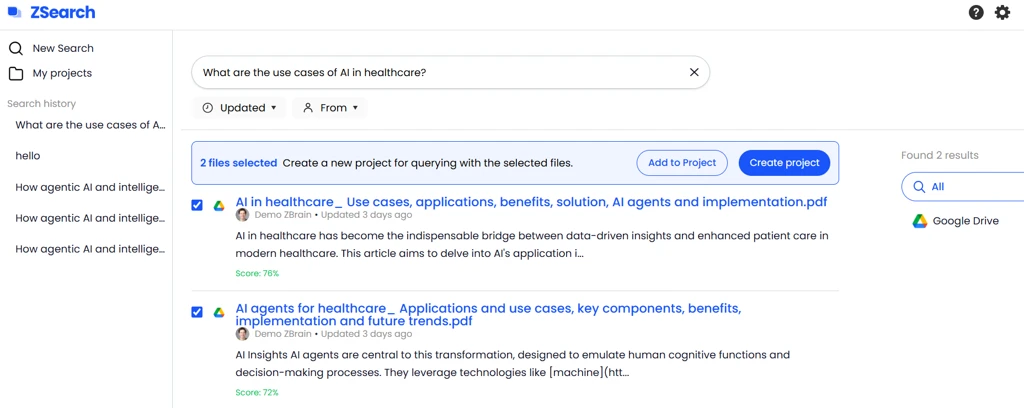
#### **Create a project from search results**
ZSearch allows users to select one or more search results and create a new project—or add files to an existing project—directly from the results view. This enhancement enables users to organize related content, collaborate with teammates, and take action on discovered information without leaving the search experience.
**Navigation:**\
ZBrain → ZSearch → Search Results → Select Files → Create Project / Add to Project
**Key outcomes**
* Enables users to quickly create new projects directly from selected search results, allowing them to name the project and assign collaborators in a single flow.
* Allows files to be added to existing projects from the search results view, preventing duplication and keeping related work centralized.
* Streamlines collaboration by letting users invite team members during project creation, ensuring shared access from the outset.
* Displays a contextual action panel only when files are selected, surfacing relevant actions such as **Create Project** or **Add to Project** without cluttering the interface.
* Provides clear confirmation messages after project creation or file upload, giving users confidence that the action was completed successfully.
* Improves overall workflow efficiency by transforming search results into structured, actionable projects.
* Strengthens data organization and collaboration by consolidating related files into logical groups, positioning ZSearch as a productivity and collaboration hub—not just a search tool.
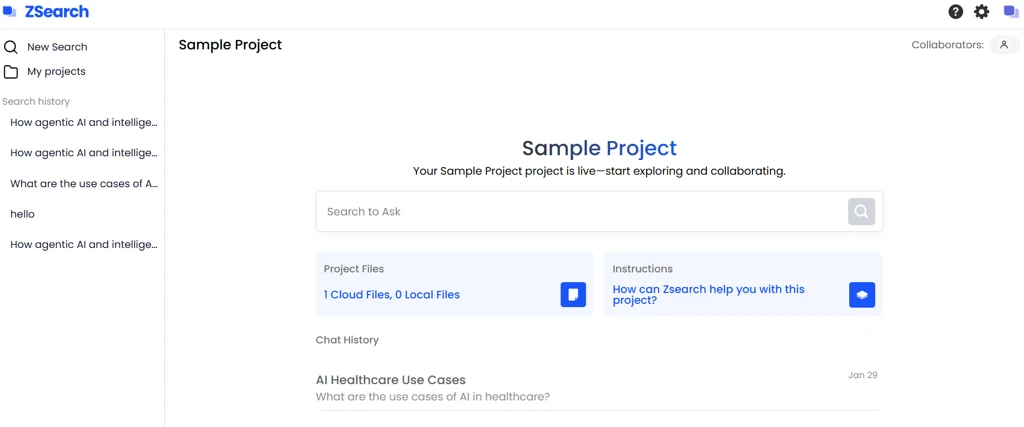
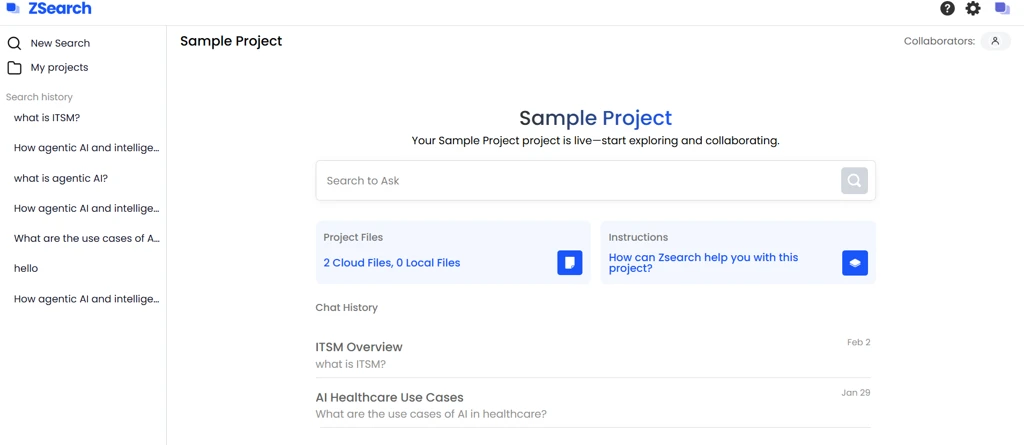
#### **Project workspace launch after creation**
ZSearch automatically opens a dedicated project workspace immediately after a project is created. This workspace serves as a centralized environment where users can access project files, manage collaborators, and query selected content—while remaining accessible in future sessions through the Projects section.
**Navigation:**\
ZBrain → ZSearch → Search Results → Select Files → Create Project → Project Workspace\
(Also accessible via Left Navigation Panel → My projects)
**Key outcomes:**
* Opens newly created projects directly into a dedicated project workspace, removing extra steps and enabling immediate interaction.
* Centralizes project management by bringing project files, collaborators, and context into a single, structured workspace.
* Enables seamless navigation via a fixed left-hand navigation panel, allowing users to quickly switch between search, projects, and new sessions.
* Strengthens collaboration by providing built-in access to view and manage collaborators directly within the project workspace.
* Allows users to begin contextual, project-specific queries instantly through an integrated query input bar.
* Increases overall productivity by integrating search, project creation, and workspace management into a single continuous workflow.
* Enhances knowledge reuse and user experience by keeping users in context as they collaborate and extract insights from project content.
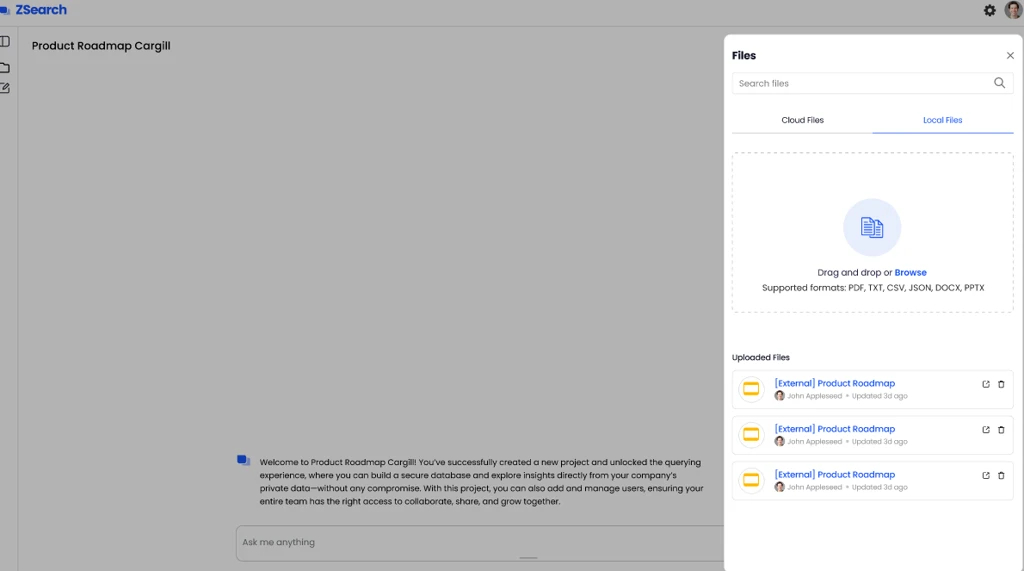
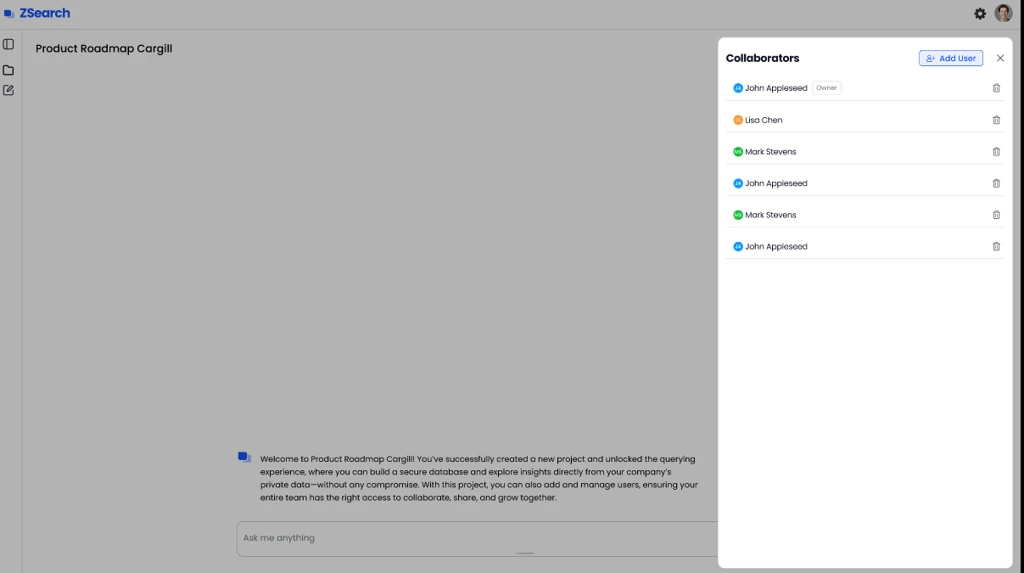
#### **Project-level file and collaborator management**
ZSearch enables users to manage both files and collaborators directly within a project workspace. Using dedicated panels for project files and collaborators, users can control which documents are included in a project and who has access—ensuring better organization, visibility, and collaboration.
**Navigation:**\
ZBrain → ZSearch → Projects → Open Project → Project Workspace → Top Right Project Files & Collaborators
**Key outcomes:**
* Centralizes management of both cloud and local files within a project, providing complete visibility with rich metadata, including source, author, and last-updated details.
* Enables seamless collaboration by allowing users to search, invite, and manage collaborators directly from the project workspace.
* Improves transparency by clearly displaying file ownership, update history, and originating source at a glance.
* Strengthens access control by empowering project owners to manage file inclusion and collaborator access from a single interface.
* Allows files to be easily added, searched, opened in read-only mode, or removed while maintaining full context and traceability.
* Gives project administrators end-to-end control over project content and user access, ensuring secure, organized, and efficient teamwork.
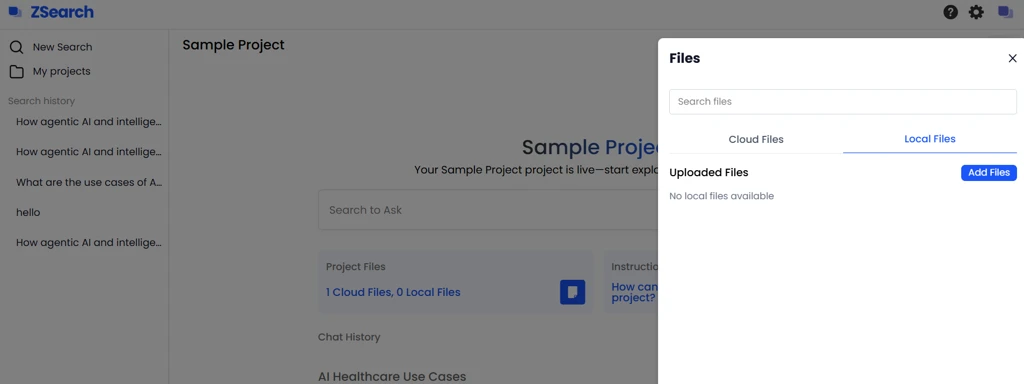
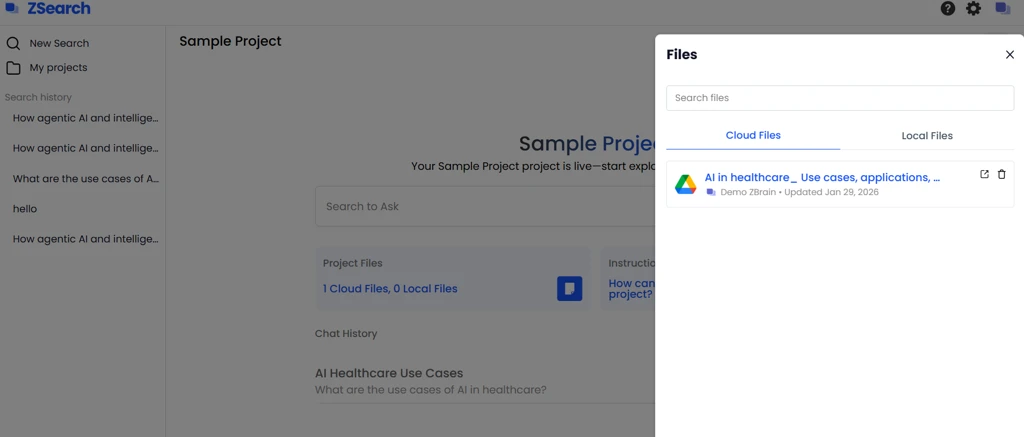
#### **Project tab and file management**
ZSearch introduces a dedicated **My projects** tab in the left navigation panel, allowing users to view all their projects in one place and manage files within each project. This enhancement makes it easier to organize, access, and maintain both cloud and local files directly from a unified project view.
**Navigation:**\
ZBrain Login → ZSearch → Left Navigation Panel → My projects
**Key outcomes:**
* Delivers a unified project view that lists all created projects with key details such as owner, file count, creation date, and last updated information.
* Enables seamless file-level management within projects, allowing users to search, open, upload, or delete files with ease.
* Supports both cloud-based and local files, giving users flexibility to manage diverse document sources within the same project.
* Provides quick access to project files via clickable file counts, which open a dedicated file navigation panel for faster exploration.
* Ensures safe and transparent file management with confirmation prompts for deletion actions.
* Simplifies project tracking, improves file discoverability across cloud and local sources, and enhances overall workflow efficiency by centralizing project and file organization in ZSearch.
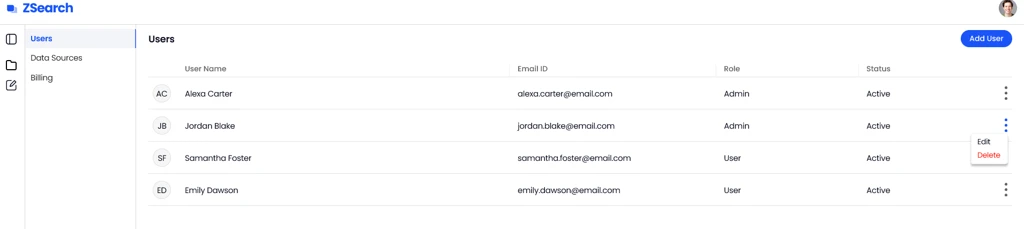
#### **User management** for admins
ZSearch provides a dedicated user management experience for admin users, enabling them to view, invite, update, and remove users from within the platform. This feature gives admins full control over user access, roles, and onboarding status—ensuring secure and well-governed collaboration across ZSearch.
**Navigation:**\
ZBrain → ZSearch → Main Search Page → Top Navigation Bar → Settings (Users)
**Key outcomes:**
* Centralizes user management in a single screen, allowing admins to view, add, edit, and remove ZSearch users with ease.
* Streamlines user onboarding through an invitation-based workflow, automatically sending email invites and confirming successful actions.
* Enables flexible role management, allowing admins to assign or update admin and user roles for precise access control.
* Improves transparency by clearly displaying each user’s role and status (Active or Pending) in the user list.
* Strengthens governance and security by ensuring that only admins can control user access and permissions.
* Simplifies administrative workflows with quick edit and delete actions, improving overall efficiency while maintaining system integrity and compliance.
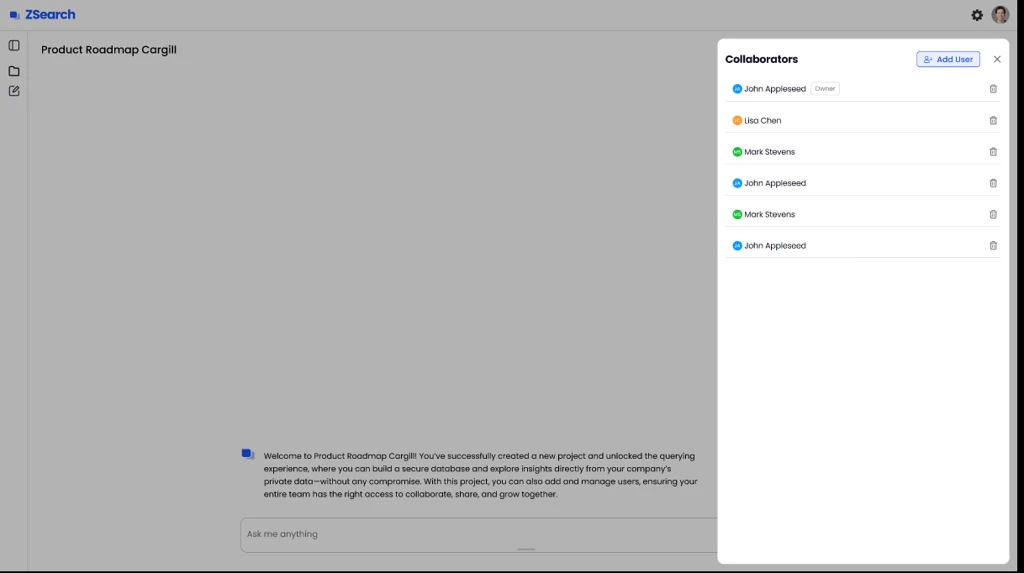
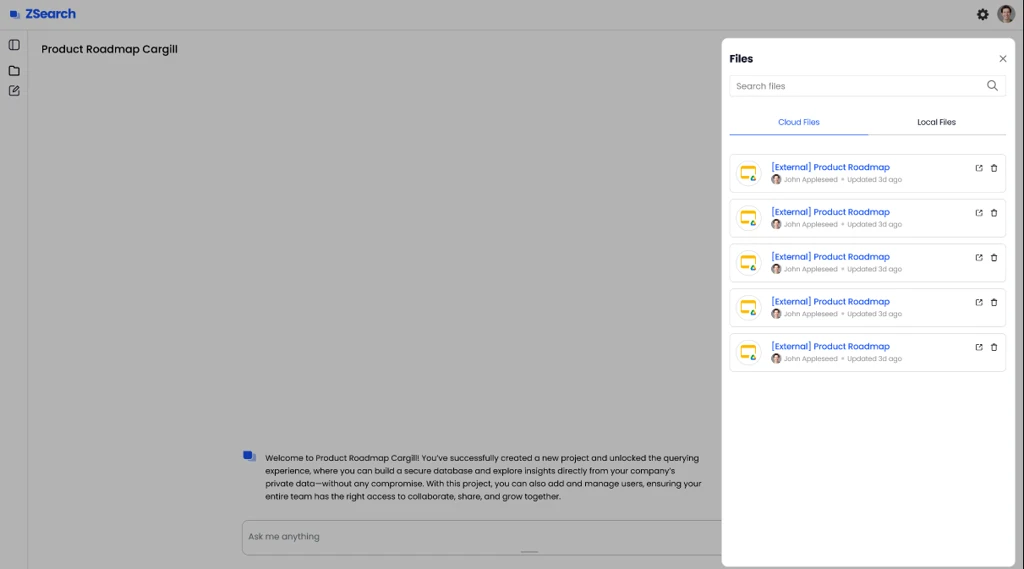
#### **Project files and collaborator management**
ZSearch enables users to manage both project files and collaborators directly from the project workspace. With dedicated right-side panels for files and users, teams can control which documents are included in a project and who has access to collaborate—ensuring better organization, transparency, and access control.
**Navigation:**\
ZBrain → ZSearch → Projects → Open Project → Project Workspace → Top Right Project Files & Collaborators
**Key outcomes:**
* Enables centralized file control by allowing users to manage both cloud and local files from a single panel, with options to search, view details, open files in read-only mode, or remove them from the project.
* Simplifies collaboration with an intuitive **Collaborators** panel that lets users search for, invite, view, and remove project members.
* Improves transparency by clearly displaying file authorship, last updated timestamps, and source indicators, helping users understand file context at a glance.
* Highlights ownership and accountability by clearly marking the project owner with an Owner tag and displaying collaborator roles and profile icons.
* Increases efficiency by streamlining the right-side panel design, enabling quick file and user management without disrupting the main workspace.
* Empowers users to manage both project content and access from a single place, strengthening collaboration, organization, and day-to-day productivity within ZSearch.
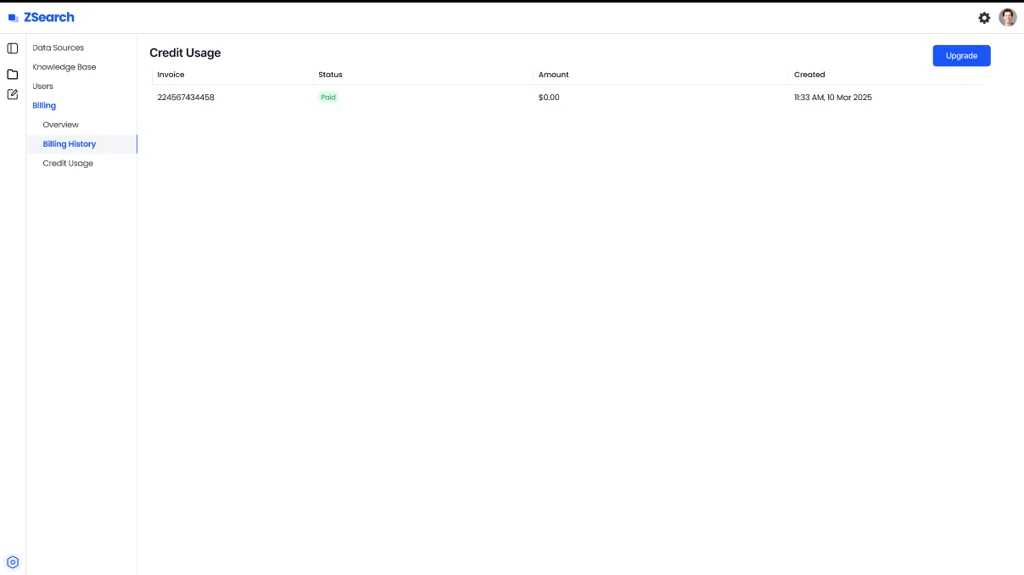
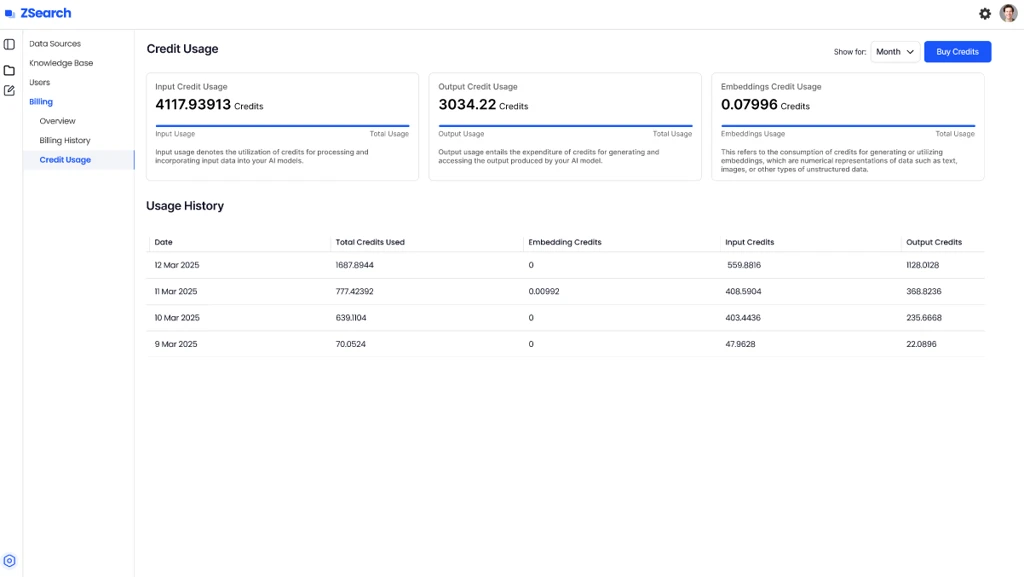
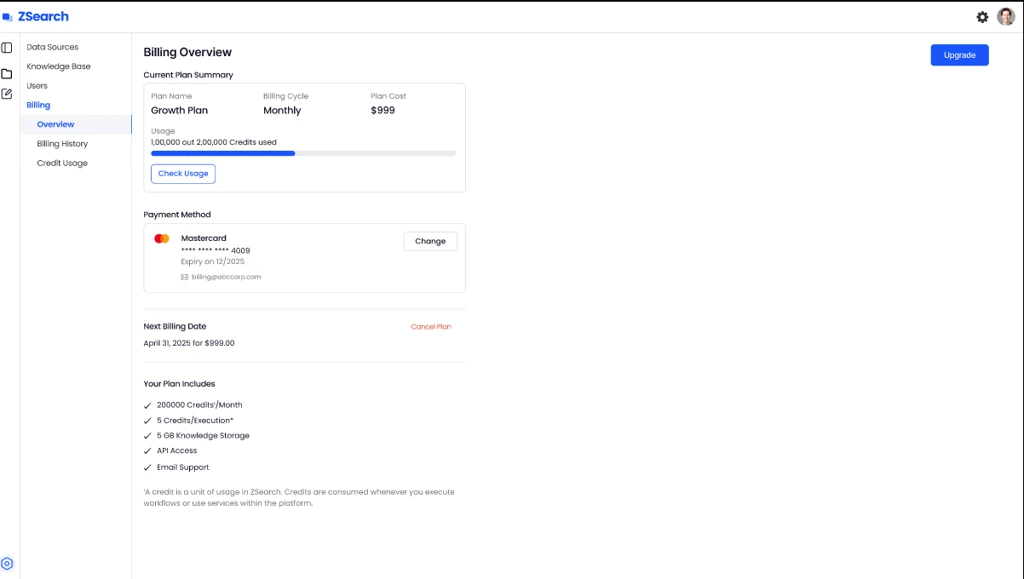
#### **Billing and subscription management**
ZSearch introduces a comprehensive billing experience that allows users to view plan details, track credit usage, manage payment methods, review billing history, and upgrade or renew subscriptions. This centralized billing view helps users stay informed, take timely actions, and ensure uninterrupted access to ZSearch services.
**Navigation:**\
ZBrain-> ZSearch → Settings Icon → Billing
**Key outcomes:**
* Provides complete transparency into subscription details, including plan name, inclusions, usage limits, and upcoming billing dates.
* Gives users full control over their subscription by allowing them to manage payment methods, cancel plans with confirmation, or upgrade to a higher plan seamlessly.
* Improves cost and usage visibility by breaking down credit consumption into input, output, and embedding categories for precise tracking.
* Enables proactive usage management, allowing users to purchase additional credits at any time, ensuring uninterrupted access to ZSearch services.
* Centralizes billing overview, billing history, and credit usage into a single billing experience, helping users stay informed and take timely actions on their subscriptions.
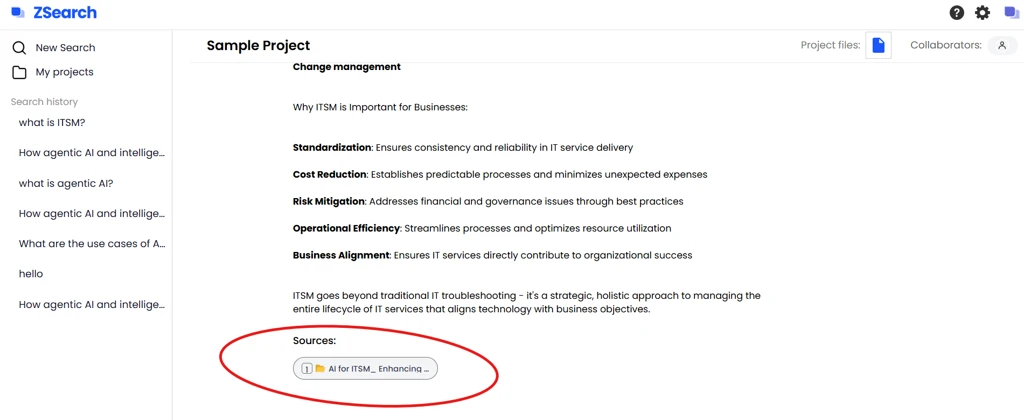
#### **Source attribution in search results**
ZSearch clearly displays the original documents and internal data sources that contribute to each search result. With a dedicated **Sources** section, users can easily see where answers come from, improving trust, transparency, and traceability of search results.
**Navigation:**\
ZBrain-> ZSearch → Start a New Search / Select Existing Search
**Key outcomes:**
* Improves transparency by clearly showing where each piece of information in a search result originates.
* Enables full traceability by mapping search results back to their underlying documents and internal data sources.
* Supports multi-source results, allowing a single answer to reference and display contributions from multiple files or connected systems.
* Builds user confidence and trust by linking search outputs directly to real, verifiable data.
* Displays a dedicated **Sources** section at the bottom of each search result, listing all contributing documents or data sources.
* Uses numbered source references (1, 2, 3, …) that correspond to highlights or steps within the search result text.
* Dynamically expands the Sources section to ensure every contributing source is visible, showing each document or data source name alongside its assigned reference number.
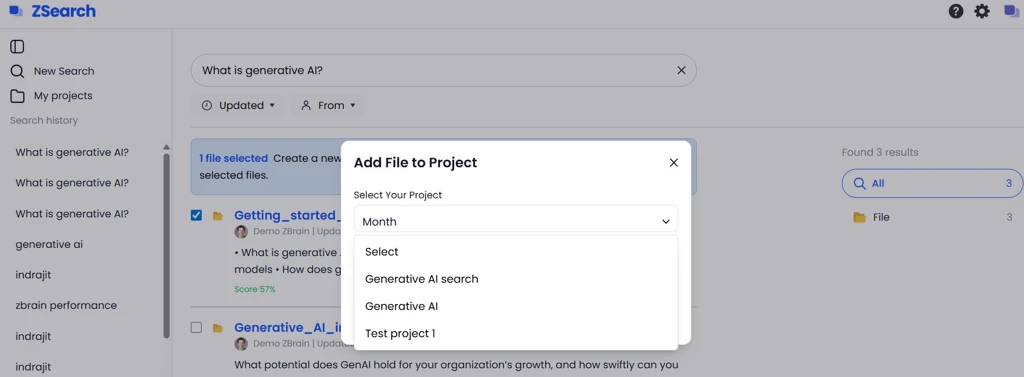
#### **Add files to the existing project**
ZSearch allows users to select one or more search results and add them directly to an existing project. This feature helps users organize relevant files, avoid duplication, and keep all related content centralized within the right project.
**Navigation:**\
ZBrain → ZSearch → Search Results → Select Files → Add Files to Project
**Key outcomes:**
* Enables seamless file management by allowing users to add selected search results directly into active projects.
* Supports smart project linking, allowing users to search for or select an existing project from a dropdown list.
* Provides clear, instant confirmation messages after files are successfully added to a project.
* Ensures real-time updates by automatically refreshing project file counts and details after new files are added.
* Simplifies knowledge organization and reuse by allowing users to consolidate search results into existing projects directly from the search results view, strengthening collaboration and workflow efficiency within ZSearch.
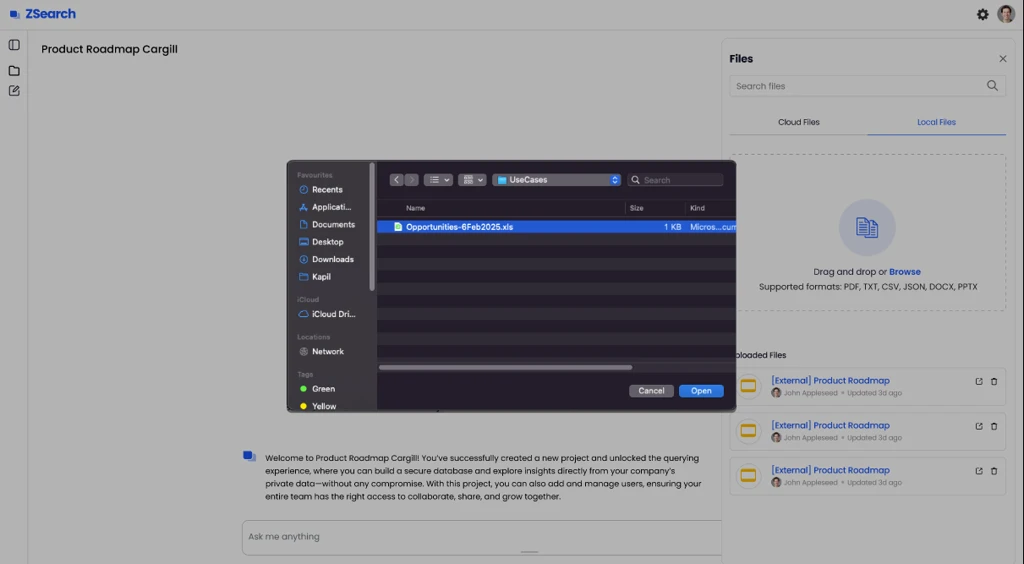
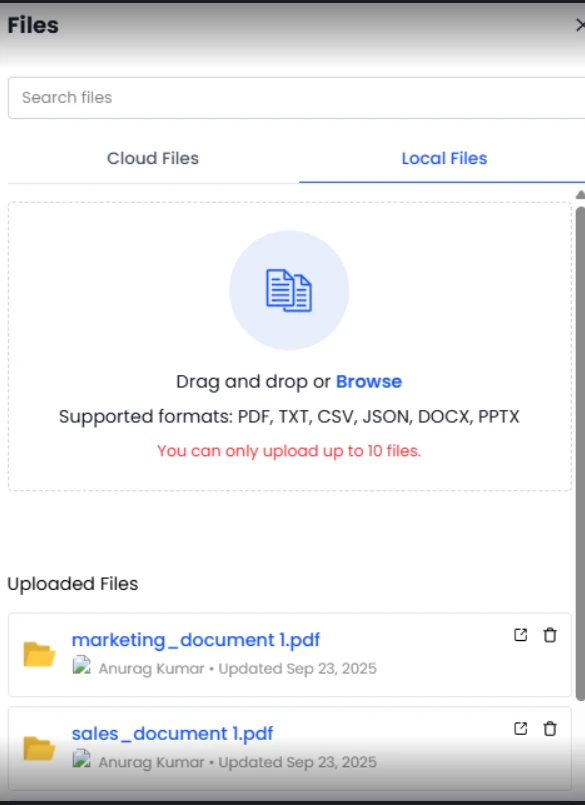
#### **Local file upload restrictions**
ZSearch enforces clear limits on local file uploads within a project to ensure optimal performance and better content management. These validations help users stay within supported boundaries while maintaining a smooth and predictable project experience.
**Navigation:**\
ZBrain → ZSearch → Projects → Open Project → Project Workspace → Project Files → Local Files
**Key outcomes:**
* Enforces a maximum of 10 local files per project to help maintain system stability and predictable performance.
* Prevents oversized uploads by validating file content length up to 5,00,000 characters, ensuring files remain within supported limits.
* Provides clear and user-friendly error messages when file count or size limits are exceeded, guiding users on corrective actions.
* Keeps the Local Files section organized and performant by ensuring only valid files are uploaded and displayed.
* Improves overall project reliability by enabling users to upload and manage local files within well-defined boundaries, delivering faster performance and a smoother upload experience across ZSearch projects.
## Enhancements
#### **Project workspace enhancements**
ZSearch now provides a fully interactive **Project Workspace** that allows users to open a project, view and manage its files, collaborate with team members, and continue conversations in context. This unified workspace helps users stay organized, reuse past work, and collaborate effectively within a project-specific environment.
**Navigation:**\
ZBrain → ZSearch → My Projects → Open Project
**Key outcomes:**
* Provides a unified project workspace that centralizes files, collaborators, instructions, and chat history in one place.
* Improves collaboration by enabling users to search, add, and remove collaborators directly within the project context.
* Enables seamless file management by allowing users to upload, view, and manage both cloud and local files from a single panel.
* Ensures continuity of work through persistent instructions and chat history, allowing users to maintain context across sessions.
* Displays a chronological chat history with the most recent conversations shown at the top, making it easy to track progress.
* Allows users to reopen past chats, view the full context, and continue conversations seamlessly from where they left off.
* Enhances control and safety with confirmation prompts for file deletion and collaborator removal, reducing the risk of accidental actions.
---
# Agent Instructions
This documentation is published with GitBook. GitBook is the documentation platform designed so that both humans and AI agents can read, navigate, and reason over technical content effectively. Learn more at gitbook.com.
## Querying This Documentation
If you need additional information that is not directly available in this page, you can query the documentation dynamically by asking a question.
Perform an HTTP GET request on the current page URL with the `ask` query parameter, and the optional `goal` query parameter:
```
GET https://docs.zbrain.ai/zbrain-release-notes/zbrain-zsearch-release-notes/zbrain-version-2.4.6-or-jan-29-2026.md?ask=&goal=
```
`ask` is the immediate question: it should be specific, self-contained, and written in natural language.
`goal` is optional and describes the broader end goal you are ultimately trying to accomplish on behalf of the user. GitBook uses it to tailor the answer towards what is most useful for that goal.
The response will contain a direct answer to the question and relevant excerpts and sources from the documentation.
Use this mechanism when the answer is not explicitly present in the current page, you need clarification or additional context, or you want to retrieve related documentation sections.